Access
Part of Coworking booking systems
Preventing Double Bookings in Shared Spaces: Practical Steps
A booking conflict starts before two people arrive at the same room. It can arise when a calendar sync is delayed, staff override a rule, or an event team blocks a …
Treat each room or desk as a distinct bookable resource and choose one authoritative calendar for it. Conflicts can start with a delayed calendar sync, a staff override or an event organiser blocking a space outside the member system.
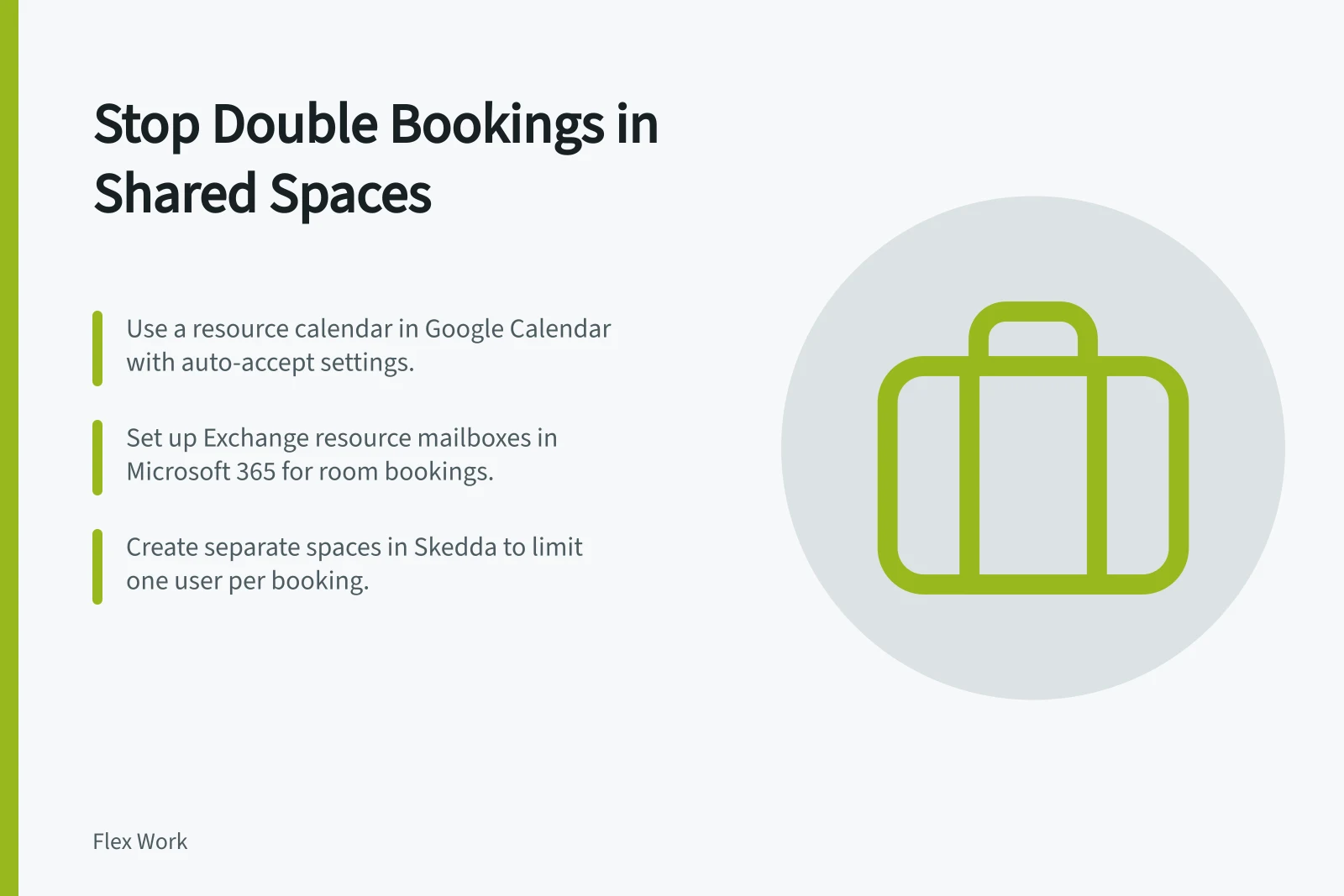
For Google Calendar, use a resource calendar rather than a standard group calendar. Open My calendars, hover over the resource calendar and choose Settings and sharing; under General > Event settings, set the automatic invitation response to “Auto-accept invites that do not conflict”. Conflicting requests are then rejected.
For Microsoft 365/Outlook, use the room’s Exchange resource mailbox as the shared booking record. When Outlook and other booking tools use that same calendar, it declines overlapping requests by default.
In Skedda, create a separate Space for each independently bookable room or desk: go to Spaces settings and select + Add a space. Skedda allows one user per space at a time, preventing overlapping reservations for that space.
Use Skedda booking conditions to limit when members can book. In Settings > Conditions, select + Add condition, choose a template or “A basic condition I can tune”, then customise it by space, day, time, booking duration or holder tags.
Conditions work alongside Hours of Availability and Booking Window settings, but System users can bypass them. Review staff overrides rather than assuming member conditions apply to every booking.
In OfficeRnD Flex, go to Admin Portal > Settings > Calendar > Calendar & Bookings, then select Add Policy under Booking Policies. Set duration, buffer or approval rules, then attach the policy to a resource rate.
OfficeRnD Flex policies apply in the Member Portal and mobile apps, not to bookings admins create directly in the Admin Portal. Check admin bookings for exceptions to the policy.
Set opening hours, booking duration and buffers to match how each space operates. Skedda’s examples include a maximum two-hour booking on Saturdays after 5 pm and strictly one-hour bookings; at 30-minute scheduler granularity, conditions also use 30-minute increments.
Record each room’s actual capacity. If it supports several independent bookings, represent them as separate capacity slots or use a group-booking rule rather than creating unrelated reservations for the same space.
Test the final available slot through the member portal, staff interface and connected calendar, including two members trying to book it at nearly the same time. Only one should receive confirmation; offer the other member an available alternative.
Use Cobot’s Calendar > Timeline to view resources side by side across the week and spot gaps or overlaps. Keep an exception log with the space, date, cause, affected members and resolution.
For a conflict in a recurring request, check the affected date and confirm its booking status; manage recurring reservations separately.
Comparison of Booking Systems: Key Features for Conflict Prevention
- SkeddaSupports one user per space at a time; allows custom booking conditions and slot management.
- OfficeRnD FlexUses booking policies tied to resource rates; applies in Member Portal and apps but not Admin Portal.
- CobotOffers timeline view for side-by-side resource monitoring and exception tracking.
- Google Calendar (Resource Calendar)Auto-accept non-conflicting invites; rejects conflicting ones automatically.
- Microsoft 365/Outlook (Exchange Resource Mailbox)Declines overlapping bookings by default when used with integrated tools.
Key Booking Policy Metrics for Shared Spaces
- Maximum Booking Duration (Saturday after 5 pm)
- 2 hours
- One User Per Space Limit
- Enforced in Skedda
- Buffer Time Support
- Available in OfficeRnD Flex and Skedda
- Approval Rules
- Configurable in OfficeRnD Flex and Skedda