Workspace Security
Part of Coworking privacy and information security
Reviewing shared printer and network risks
Trace shared print jobs and scans, then check the coworking network boundary and approved connection for sensitive work.
Review the printer and network as separate routes for information to leave your control. For printing, follow a document from submission to collection or deletion. For the network, identify who runs it, which connection your team should use and what your devices can reach. Check site safeguards before using either service for sensitive work.
Trace a print or scan job
Ask the operator to explain the process for a member account:
| Stage | Question |
|---|---|
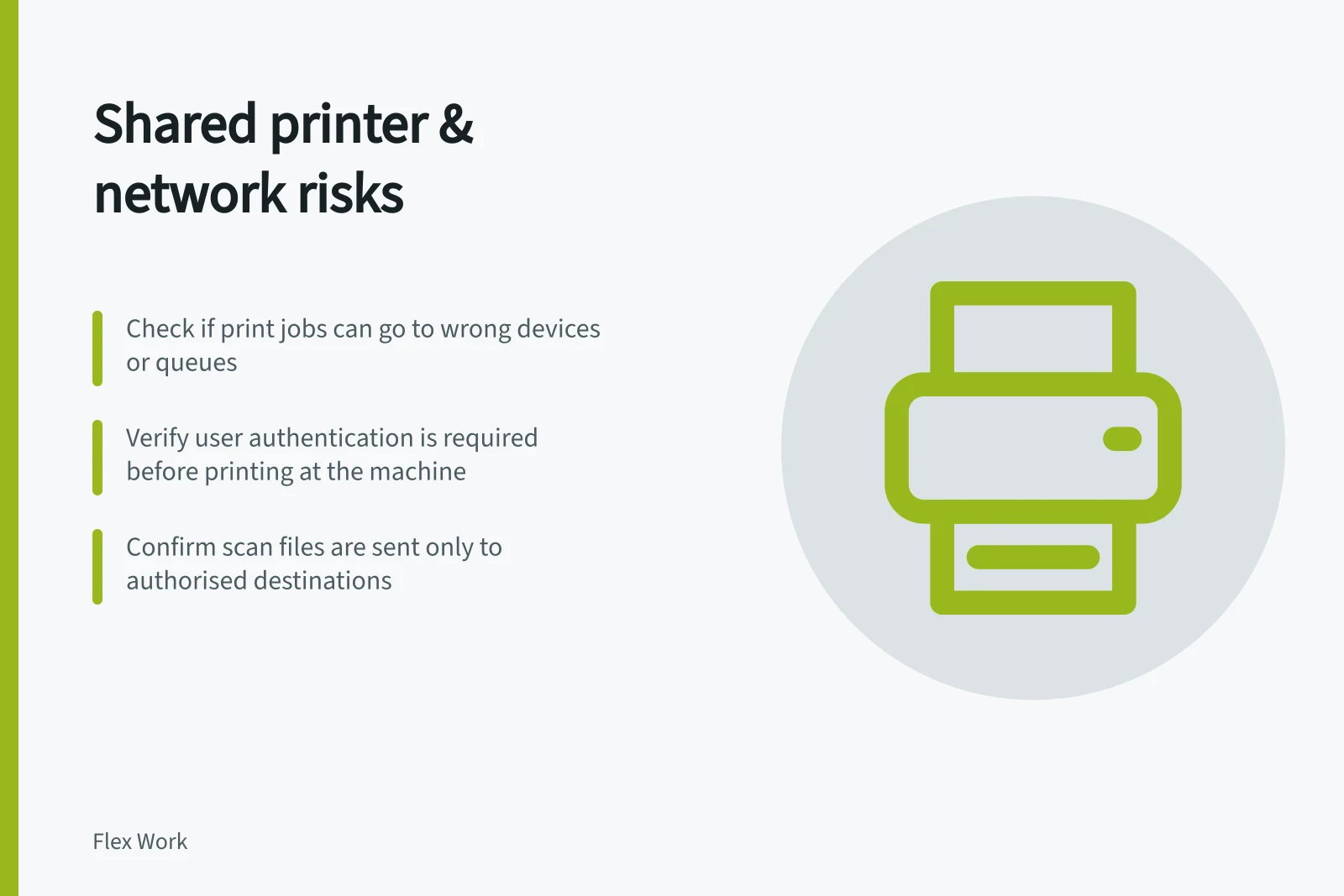
| Submit | Could a job go to the wrong device or queue? |
| Release | Must the user authenticate at the machine before pages appear? |
| Collect | Where do pages land, and who clears abandoned output? |
| Scan | Where does the file go, and who can select or see that destination? |
| Maintain | Who administers, repairs and retires the device, including any retained data? |
Check both printing and scanning. A scan sent to an old address or shared folder carries a different risk from a page left in a tray.
Ask whether the device retains job data and how that data is handled when the device is repaired or replaced.
Treat device data handling as a question to raise rather than assuming a job leaves no trace; these checks are useful questions for this review, not a universal requirement for coworking operators.
If the process cannot be established for a sensitive document, use an approved business printer or digital workflow instead.
Trace a print or scan job
- SubmitCould a job go to the wrong device or queue?
- ReleaseMust the user authenticate at the machine before pages appear?
- CollectWhere do pages land, and who clears abandoned output?
- ScanWhere does the file go, and who can select or see that destination?
- MaintainWho administers, repairs and retires the device, including any retained data?
Establish the network boundary
Confirm the official network name and sign-in method with the operator.
Ask whether member, guest, printer and operator devices have separate access arrangements, who can change settings and how suspected incidents are reported.
A label such as “guest network” does not show whether devices are isolated from one another.
If the connection is treated as public or untrusted, turn off file sharing where appropriate, keep devices updated and follow your organisation’s approved connection method. A personal hotspot may be a fallback where coverage and policy permit it.
If your organisation requires a VPN, use its approved setup. A VPN can add protection to traffic on a public network, but it does not secure an unsafe device or an exposed printout.
Network access arrangements
- Member devices
- Separate access; restricted settings
- Guest devices
- Limited access; may not be isolated
- Printer devices
- Restricted access; separate network segment possible
- Operator devices
- Admin-level access; controlled by operator
Record the permitted uses
State which documents may be printed, which connection staff should use and whom to contact when a service fails.
Recheck those decisions if the operator changes a device, network or membership arrangement.
The answer may differ by document sensitivity; there is no need to approve every task merely because the printer or Wi-Fi works.
Permitted uses for sensitive work
- Approved document types for printingOnly low-sensitivity documents (e.g., internal memos)
- Required connection methodOrganisation-approved VPN or secure Wi-Fi
- Contact for service failureDesignated IT support or facility manager
- Recheck after changesIf device, network or membership setup changes